insidemetics

Help for creators

Simple steps, with real pictures of the screens you will see. Pick a topic, or scroll down.

Getting started

How do I make my store?

Sign up with your name, email and a password, and your 7-day free trial starts straight away, no card needed. Pick a plan in Plan & billing to keep your store after the trial.

  1. Go to insidemetics.com and click Start free trial.
  2. Type your full name, email and a password.
  3. Tick the box to agree to the terms, then click Create account.
  4. Pick your store link, for example insidemetics.com/yourname.
  5. You now have a store. Add your first product next.
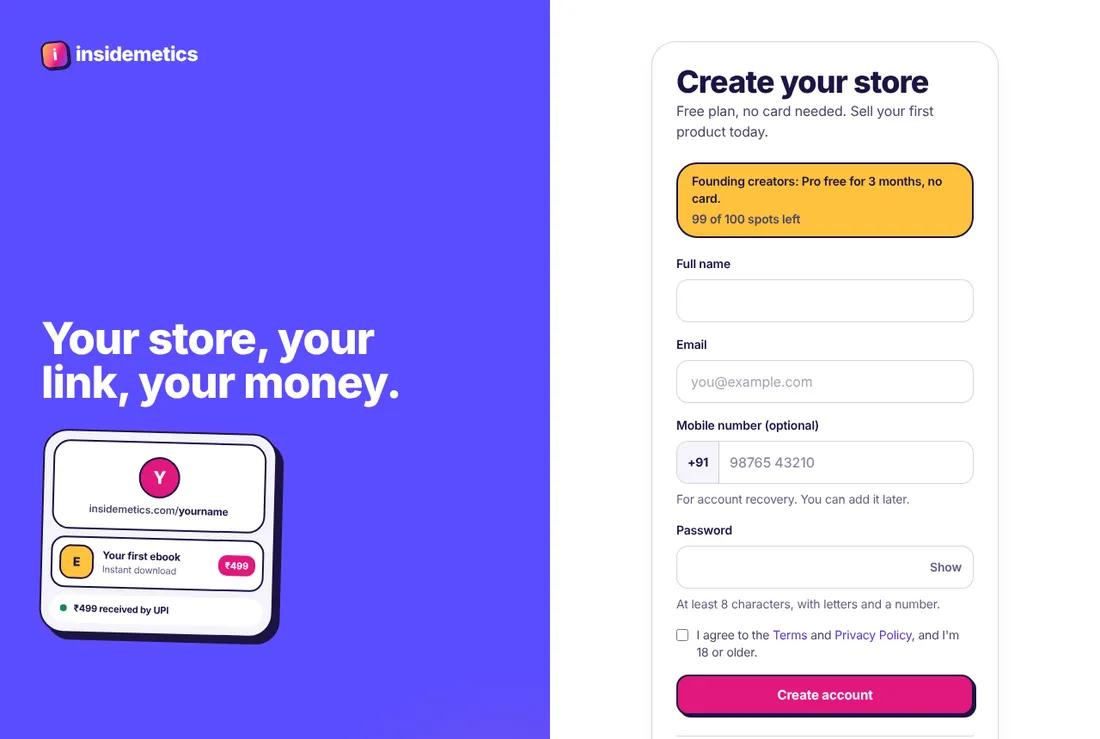
The Create your store page with name, email, mobile number and password boxes
The sign-up page.

What is the dashboard?

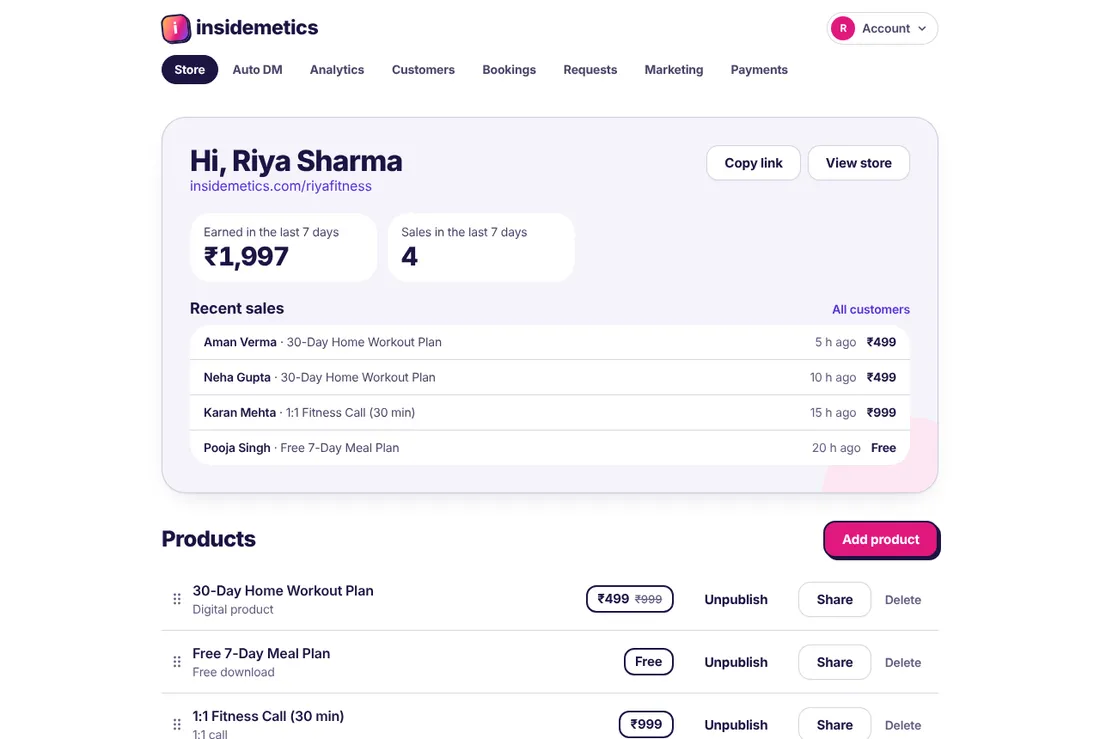
The dashboard is your control room. You see your money, your latest sales and all your products in one place.

  1. Earned in the last 7 days shows your money from the past week.
  2. Recent sales shows who bought what.
  3. Products lists everything in your store. Drag the dots on the left to change the order.
  4. Copy link copies your store link. Paste it in your Instagram bio.
  5. View store opens your store the way buyers see it.
Dashboard with earnings, recent sales and a list of three products
Your dashboard.

How do I change my photo, name or bio?

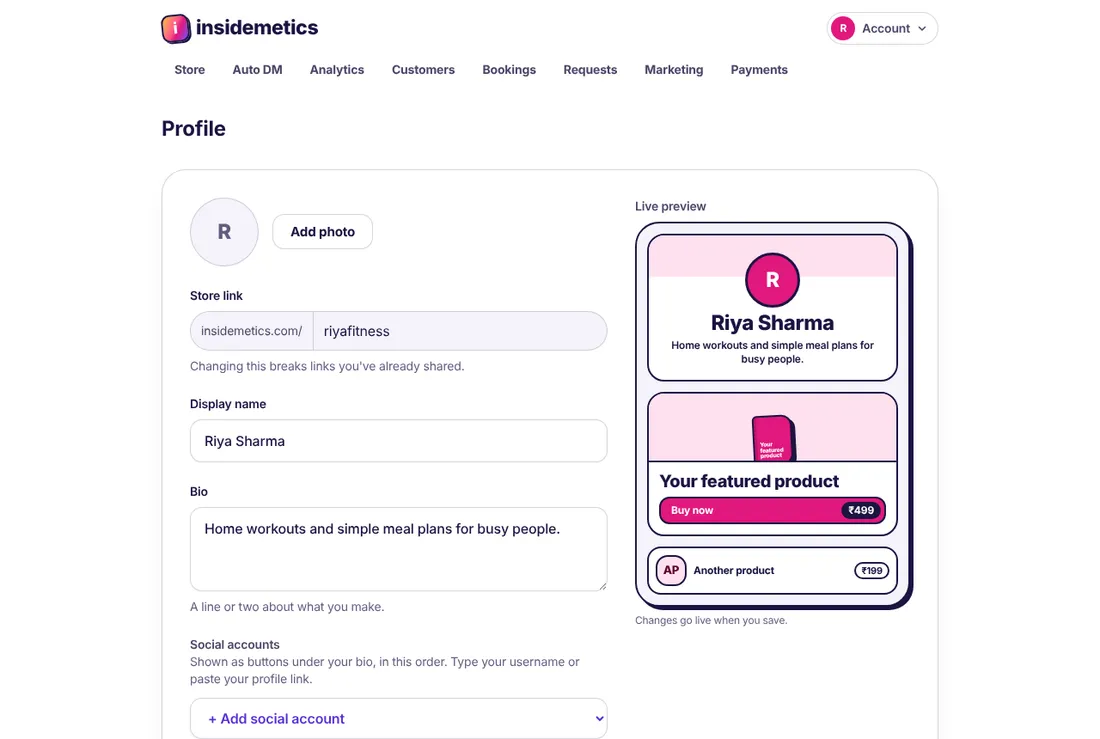
Open Profile from the Account menu at the top right. Changes show in the preview on the right.

  1. Click Account at the top right, then Profile.
  2. Click Add photo to upload your picture.
  3. Change your Display name and Bio (one or two lines about what you make).
  4. Click Add social account to show your Instagram, YouTube and other links.
  5. Click Save profile at the bottom.

Tip: Be careful when you change your store link. Old links you shared will stop working.

Profile page with photo, store link, display name, bio and a live preview
Profile, with a live preview.

What does my store look like to buyers?

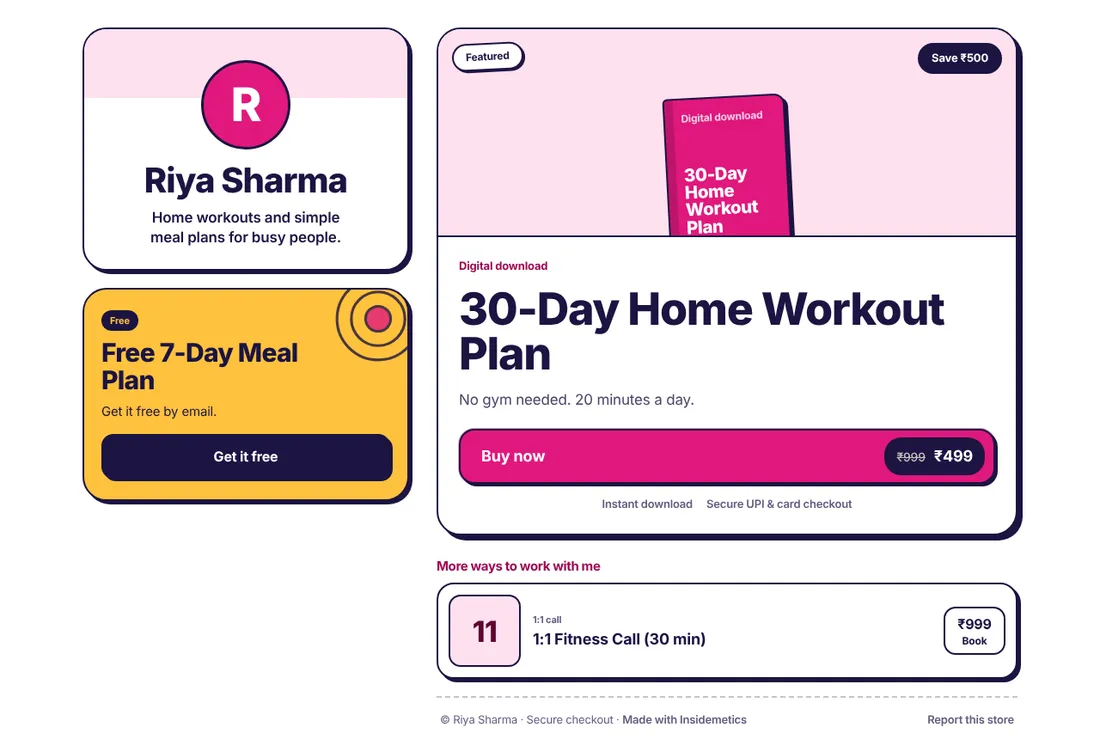
Buyers see your photo, name and bio, then your products. Your first product is shown big as the featured one. Free downloads get their own bright card.

A creator store with a profile card, a free meal plan card and a featured workout plan with a Buy now button
A store, as buyers see it.

Products

How do I add a product?

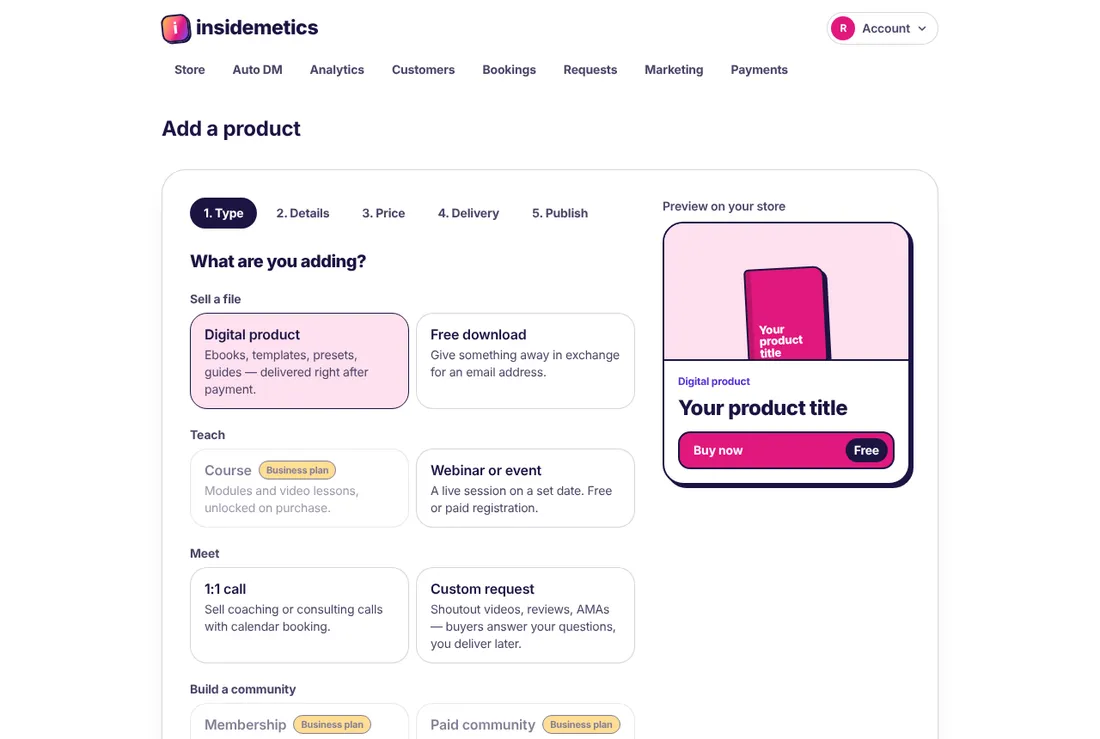
Click Add product on your dashboard. Pick what you are selling, then fill the 5 short steps.

  1. On your dashboard, click Add product.
  2. Pick a type. For an ebook, PDF or template, pick Digital product.
  3. Click Next and type a title, a short line and a description.
  4. Set your price. You can also add an old price to show a discount.
  5. Choose how buyers get it, then switch on Show on my store and click Add product.
Add a product page with product types: digital product, free download, course, webinar, 1:1 call and more
Step 1: pick what you are selling.

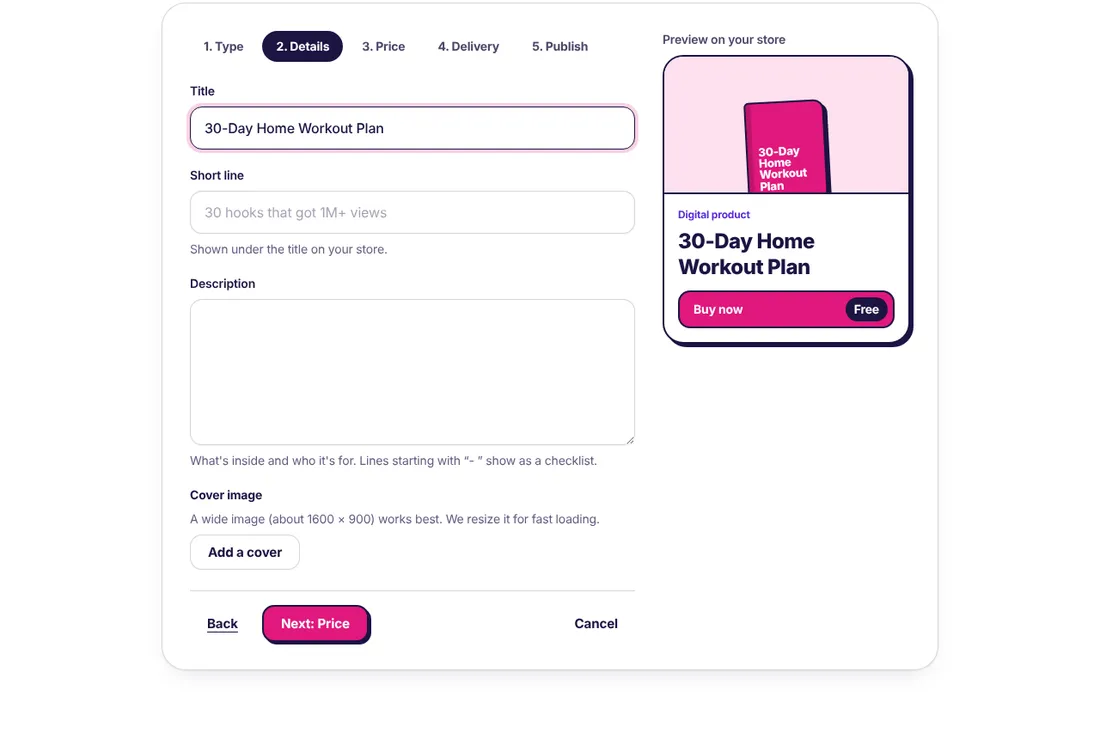
What should I write in the title and description?

Keep the title short and clear. Say what the buyer gets. In the description, say what is inside and who it is for.

  1. Title: what it is, for example “30-Day Home Workout Plan”.
  2. Short line: one line under the title, for example “No gym needed. 20 minutes a day.”
  3. Description: what is inside. Start a line with “- ” to show it as a checklist.
  4. Cover image: a wide picture (about 1600 × 900). If you skip it, we make a simple cover for you.

Tip: The preview on the right shows how your product will look on your store while you type.

Product details step with title, short line, description and cover image, and a live preview
Step 2: the details.

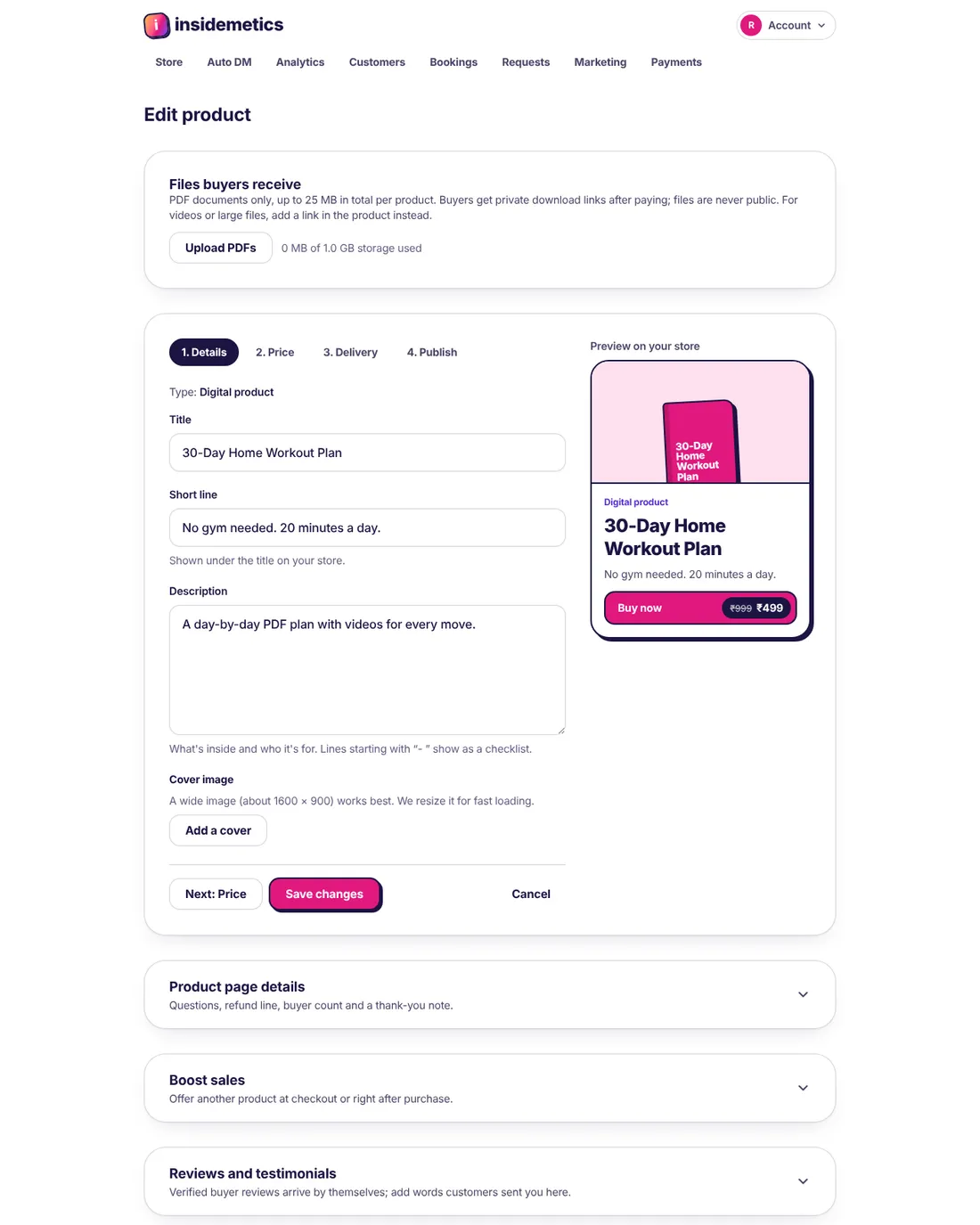
How do I upload my PDF?

Open the product and use Files buyers receive. Buyers get a private download link after they pay. Your file is never public.

  1. On your dashboard, click the product name.
  2. In Files buyers receive, click Upload PDFs.
  3. Pick your file. PDFs only, up to 25 MB in total for each product.
  4. Wait for the upload to finish. That is it.

Tip: For videos or very big files, put them on Google Drive or YouTube (unlisted) and add the link in the product instead.

Edit product page with the Files buyers receive box at the top and product details below
Edit product: files at the top.

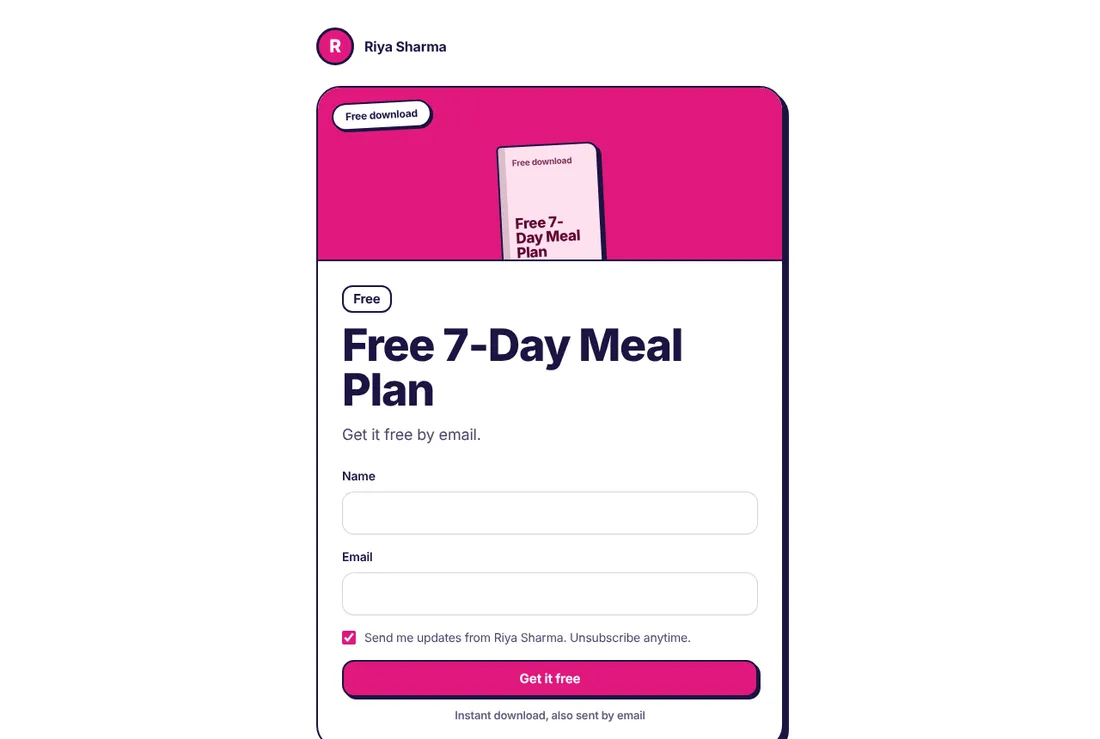
How do I give something away for free?

Add a product and pick Free download. People type their name and email to get it. Each person is saved in your customers list, so you can reach them later.

  1. Click Add product and pick Free download.
  2. Add a title, for example “Free 7-Day Meal Plan”.
  3. Upload your PDF or add a link.
  4. Switch on Show on my store and click Add product.

Tip: Free downloads do not need PayPal or Razorpay. They work from day one, and they don't count towards your plan's product limit.

A free download page with name and email boxes and a Get it free button
What people see for a free download.

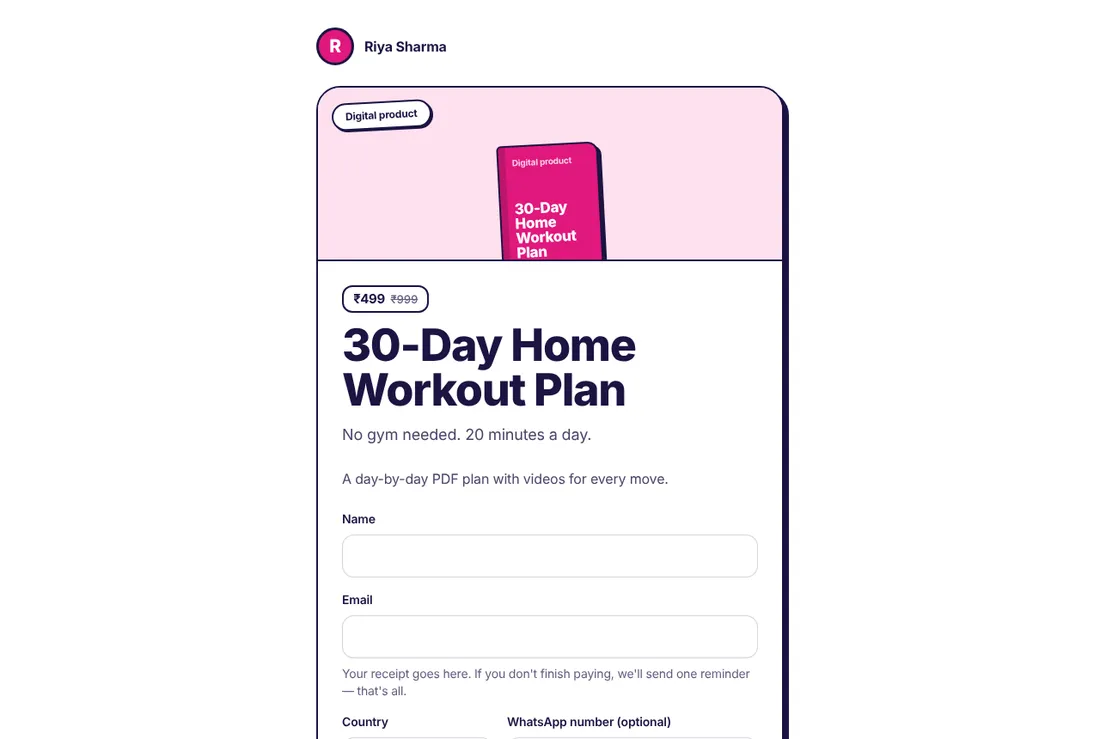
What does the buyer see when they buy?

The buyer types their name and email, then pays with PayPal or a card (buyers in India can also pay by UPI). After paying, they get the product by email at once.

Product page for a ₹499 workout plan with name, email and country boxes
The checkout page.

How do I hide or delete a product?

On your dashboard, click Unpublish to hide a product from your store. Click Delete to remove it. People who already bought it keep their access when you unpublish.

How do I share one product?

On your dashboard, click Share next to the product. You can copy its link or share it on WhatsApp and other apps.

Getting paid

How do I connect PayPal?

Buyers outside India pay into your own PayPal account. You connect it once by copying two codes from PayPal. We set up payment confirmations for you.

  1. You need a PayPal business account. Log in at developer.paypal.com with it.
  2. Open Apps & Credentials, switch to Live, click Create App, give it any name and click Create App again.
  3. Copy the Client ID and Secret that PayPal shows you.
  4. In your dashboard, open Payments, paste them under PayPal and click Connect PayPal.

Tip: Your Secret is stored encrypted and never shown again. Never send it to anyone, including us. You can remove it any time with Disconnect.

How do I connect Razorpay?

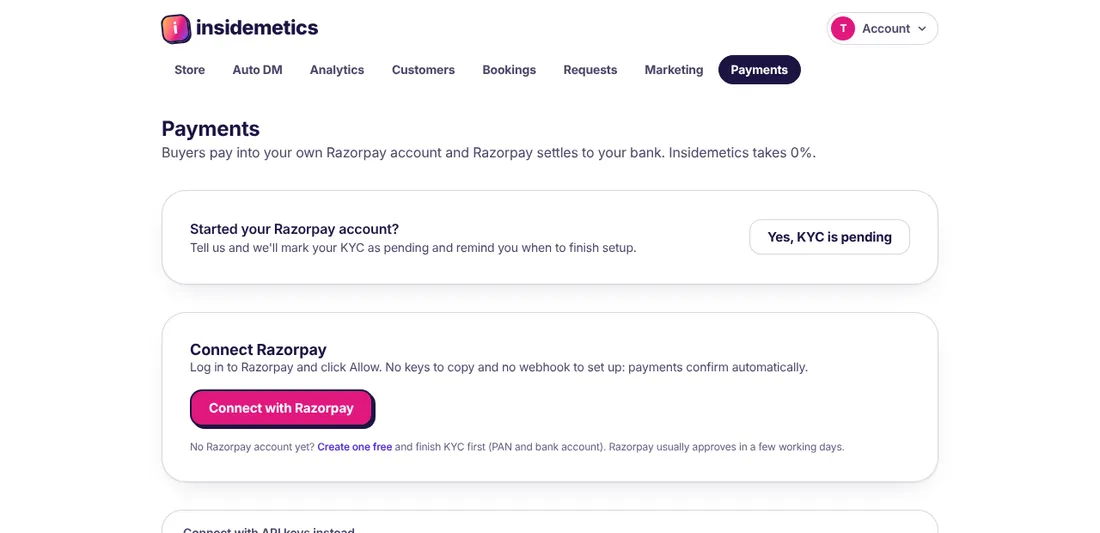
Razorpay lets buyers in India pay you by UPI, card or netbanking, in rupees. Connecting takes one button: buyers pay into your own Razorpay account, and Razorpay sends the money to your bank. There are no keys to copy.

  1. No Razorpay account yet? Click Create one free on the Payments page and finish KYC with your PAN and bank account.
  2. Open Payments in your dashboard and click Connect with Razorpay.
  3. Log in to Razorpay and click Allow.
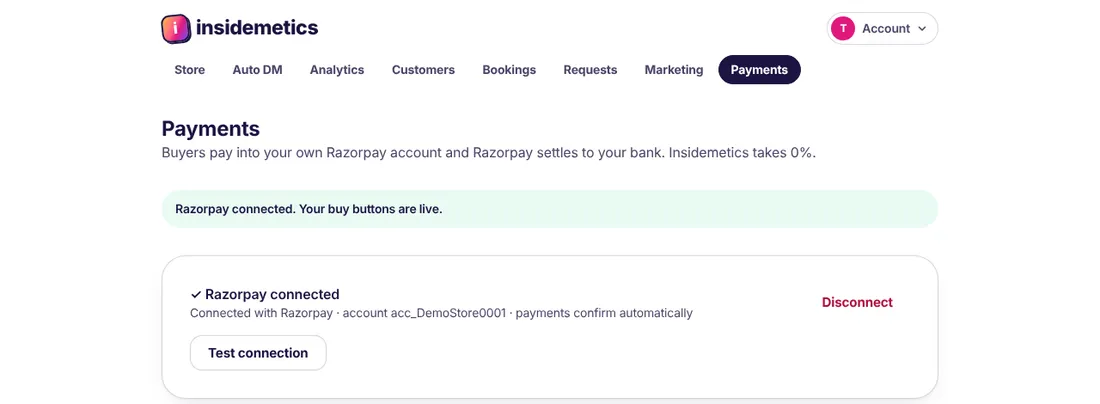
  4. You come back to Insidemetics and see Razorpay connected. Buyers in India can now pay by UPI.

Tip: You log in on Razorpay's own page, so we never see your Razorpay password. You can remove access any time with Disconnect, or from your Razorpay dashboard.

Payments page with a Connect with Razorpay button
Payments: one button to connect Razorpay.

How do I know Razorpay is connected?

The Payments page shows Razorpay connected with your Razorpay account number. Click Test connection any time to check it still works. If you remove access in Razorpay, the page tells you, and you can connect again with the same button.

Payments page showing Razorpay connected with a Test connection button
Connected: payments confirm automatically.

When do I get my money?

PayPal payments usually land in your PayPal balance straight away, and you can move them to your bank from PayPal. Razorpay sends money to your bank, usually in 2 to 3 working days. We never hold your money, so there is nothing to withdraw from us.

How much do you take from my sales?

We take 0% of your sales. You only pay your plan fee. PayPal or Razorpay takes its own fee on each payment, depending on your country and the buyer's.

Where do I see my buyers?

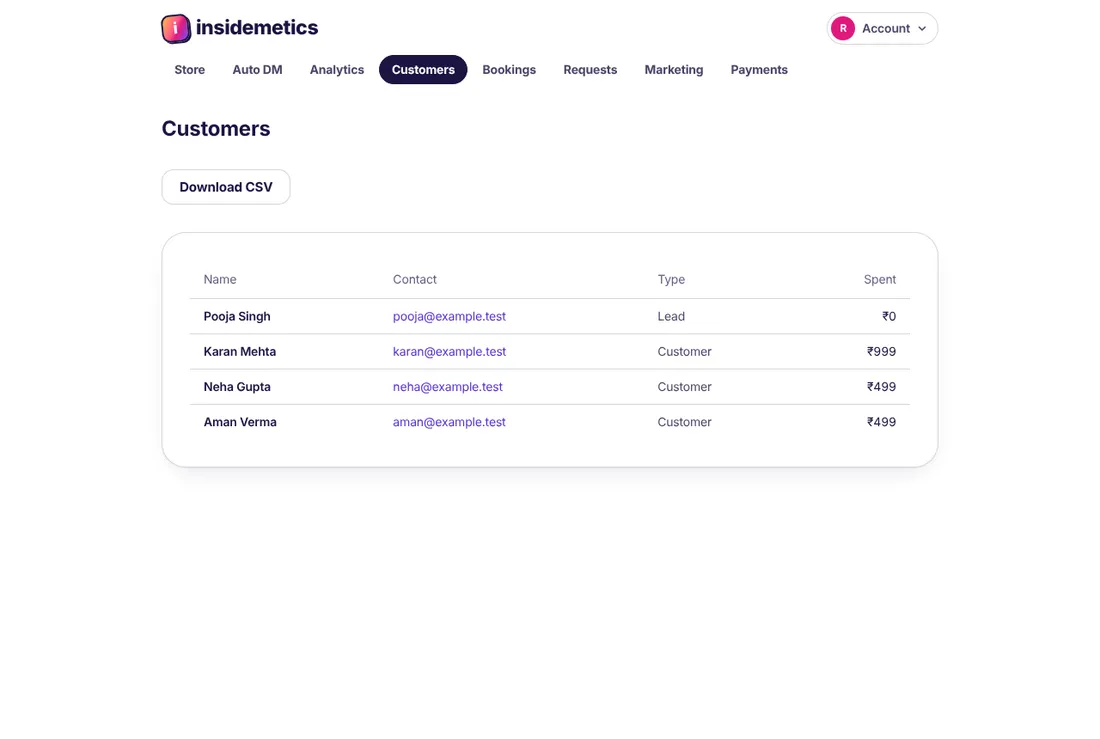
Open Customers. You see everyone who bought or downloaded something, with their email and how much they spent. Click Download CSV to save the list.

Customers page with a list of names, emails, type and amount spent
Customers: everyone who bought or downloaded.

How do I give a refund?

Open Customers, click the buyer, and click Refund on the order (Pro and Business plans). Or refund the payment from your PayPal or Razorpay dashboard. The money goes back in about 5 to 7 working days.

Instagram Auto DM

What is Auto DM?

When someone comments a word (like “PLAN”) on your post or reel, we send them your product link in their DMs at once. You do not have to reply by hand.

  1. Open Auto DM in your dashboard.
  2. Connect your Instagram professional account. A small window opens. Log in there and allow access.
  3. Pick a post or reel, and type the word people should comment.
  4. Pick the product or link to send. Save.

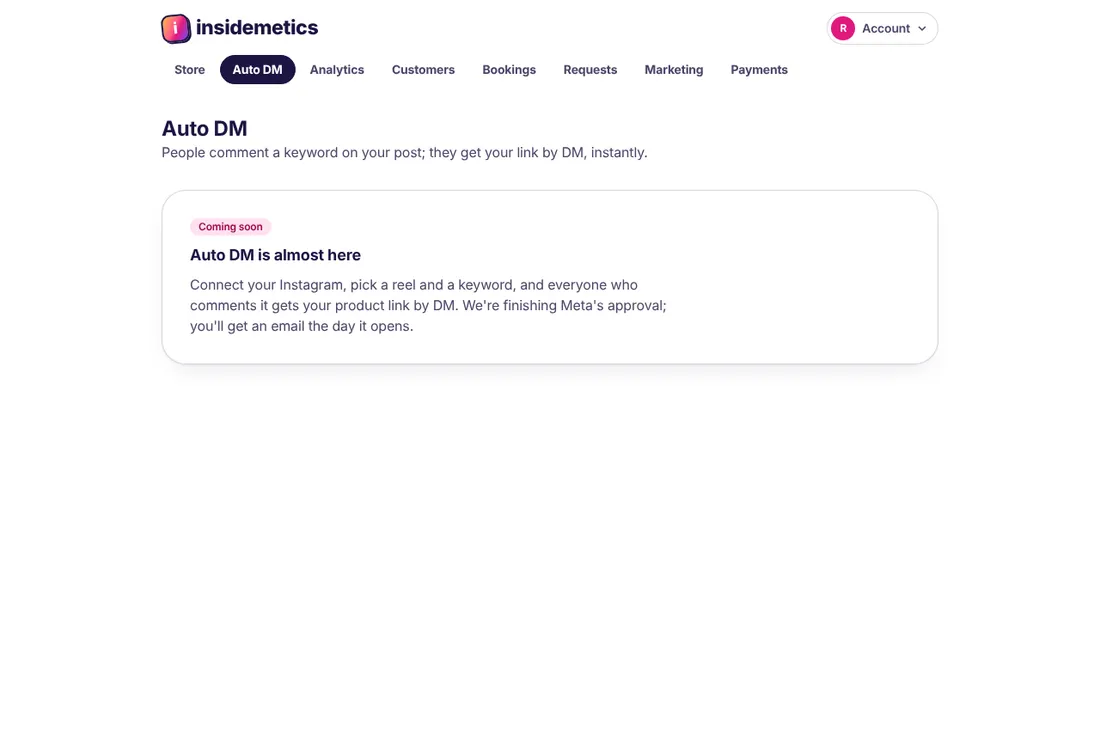
Tip: Auto DM is waiting for Meta's approval. Until then, you see “Coming soon”, and we will email you the day it opens.

Auto DM page showing that Auto DM is coming soon
Auto DM, before Meta's approval.

Plans

Is there a free plan?

No. Every plan starts with a 7-day free trial of Pro or Business: no card needed, and every feature is on. Stores that joined while we still had a Free plan keep it, with free products only. See the pricing page for details.

How do I cancel a paid plan?

Open Plan & billing and click Manage billing. You can cancel there any time. You keep your plan until the end of the time you paid for.

Your account and safety

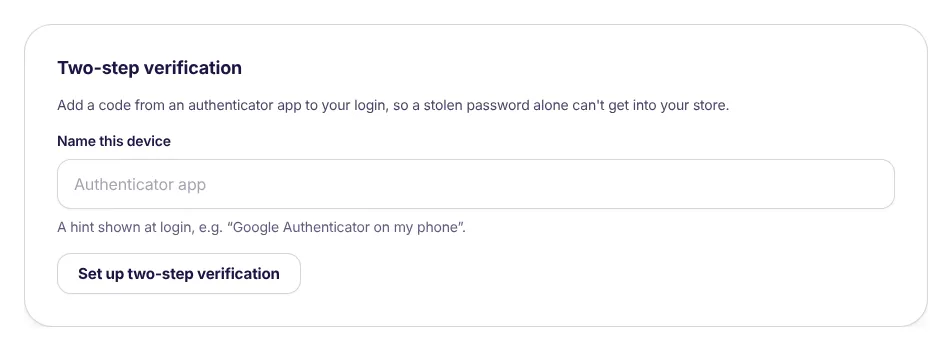
How do I turn on two-step verification?

Two-step verification asks for a 6-digit code from your phone when you log in. So even if someone gets your password, they cannot get into your store.

  1. Get a free authenticator app on your phone, like Google Authenticator.
  2. Open Settings and find Two-step verification.
  3. Type a name (for example “My phone”) and click Set up two-step verification.
  4. Scan the QR code with the app.
  5. Type the 6-digit code from the app to finish.

Tip: Keep your phone safe. You need the app every time you log in on a new device.

Two-step verification box in Settings with a device name field and a set-up button
Settings: two-step verification.

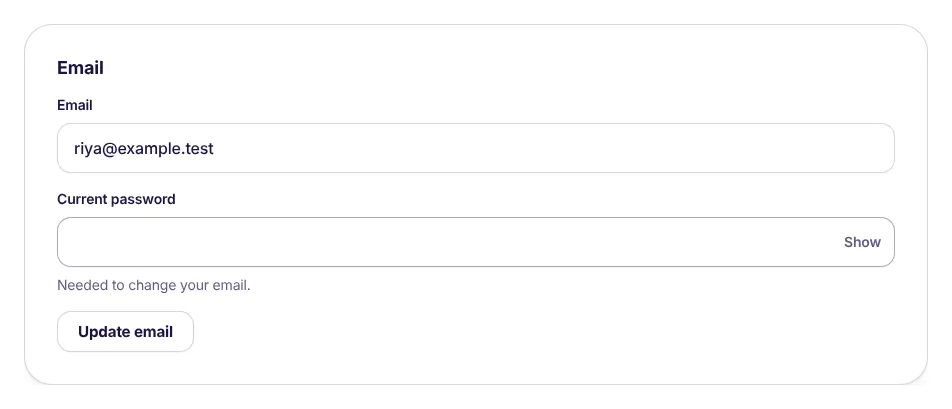
How do I change my email?

Open Settings, type your new email and your current password, and click Update email. We send a link to your new email. Click it to finish.

Email box in Settings with email and current password fields and an Update email button
Settings: change your email.

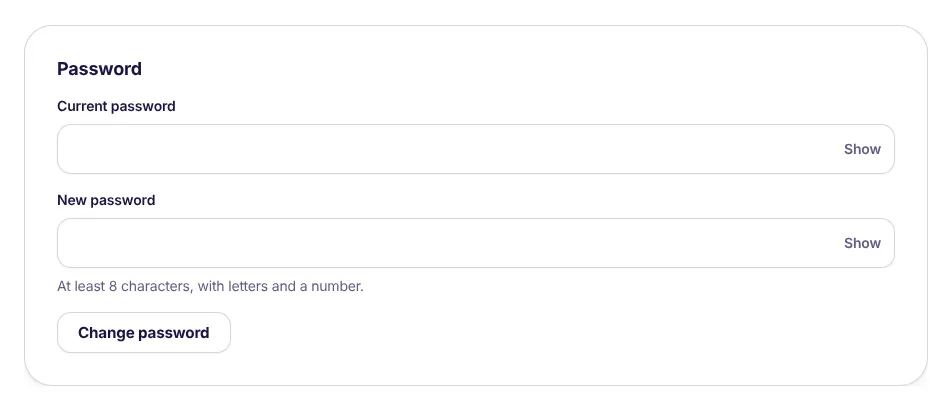
How do I change my password?

Open Settings, type your current password and a new one, and click Change password. Use at least 8 characters with letters and a number.

Tip: Forgot your password? On the login page, click Forgot password? and we will email you a link.

Password box in Settings with current and new password fields
Settings: change your password.

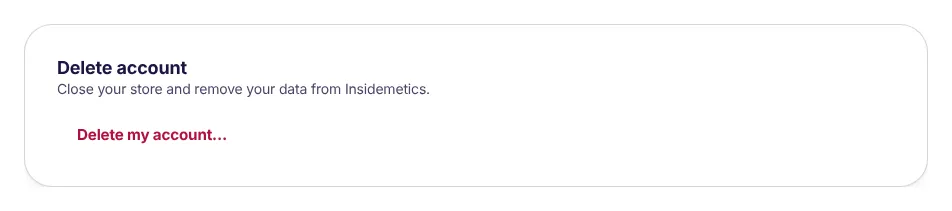
How do I delete my account?

Open Settings, scroll to Delete account and click Delete my account…. Type your store link name (for example riyafitness) to confirm. This removes your store, products, files and customers for good, and buyers lose access to what they bought. Cancel any paid plan first, and download your data before you delete.

Delete account box in Settings with a Delete my account button
Settings: delete account.

I am stuck. How do I get help?

Use the support form on our Contact support page. We usually reply within 2 working days.

Still need help?

Send us a message on the support page. We usually reply within 2 working days. You can also read the FAQ.

Last updated 23 October 2026.