Set Up Your Creator Store in 15 Minutes: Step-by-Step Tutorial
A screen-by-screen walkthrough of setting up an Insidemetics store: your link, profile, social accounts, store colour, trial, and connecting Razorpay for UPI payments.
PParth Garg· Founder, Insidemetics · Updated · 3 min read
In short
- Sign up, pick your store link, and start the 7-day trial with a card.
- Fill in your profile: photo, bio, social accounts and store colour — the preview updates as you type.
- Connect Razorpay with your Key ID, Key Secret and a webhook secret.
- Add your first product and share your link.
This tutorial walks through setting up a store from scratch, with screenshots of each screen. You'll need about 15 minutes, a photo of yourself, and (for taking payments) a Razorpay account.
Step 1: Create your account and pick your link
Sign up with your name, email and a password, then confirm your email. You'll choose your store link — insidemetics.com/yourname — and a display name. Pick something short that matches your Instagram handle if you can.
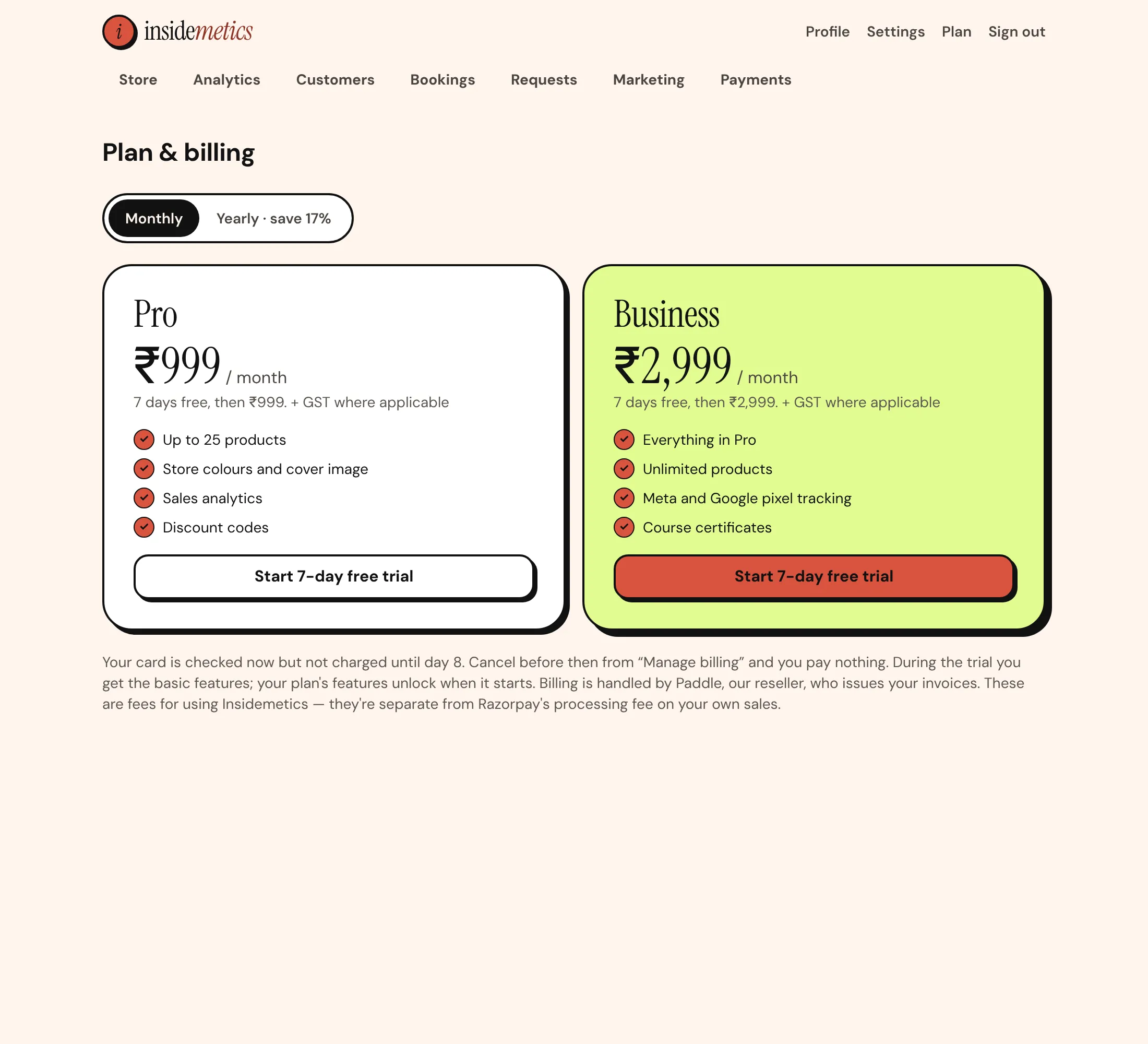
Step 2: Start your free trial
Choose Pro or Business, monthly or yearly, and add a card. You aren't charged for 7 days, and you can cancel before then from Plan & billing. During the trial you get the basic features and up to 3 live products.
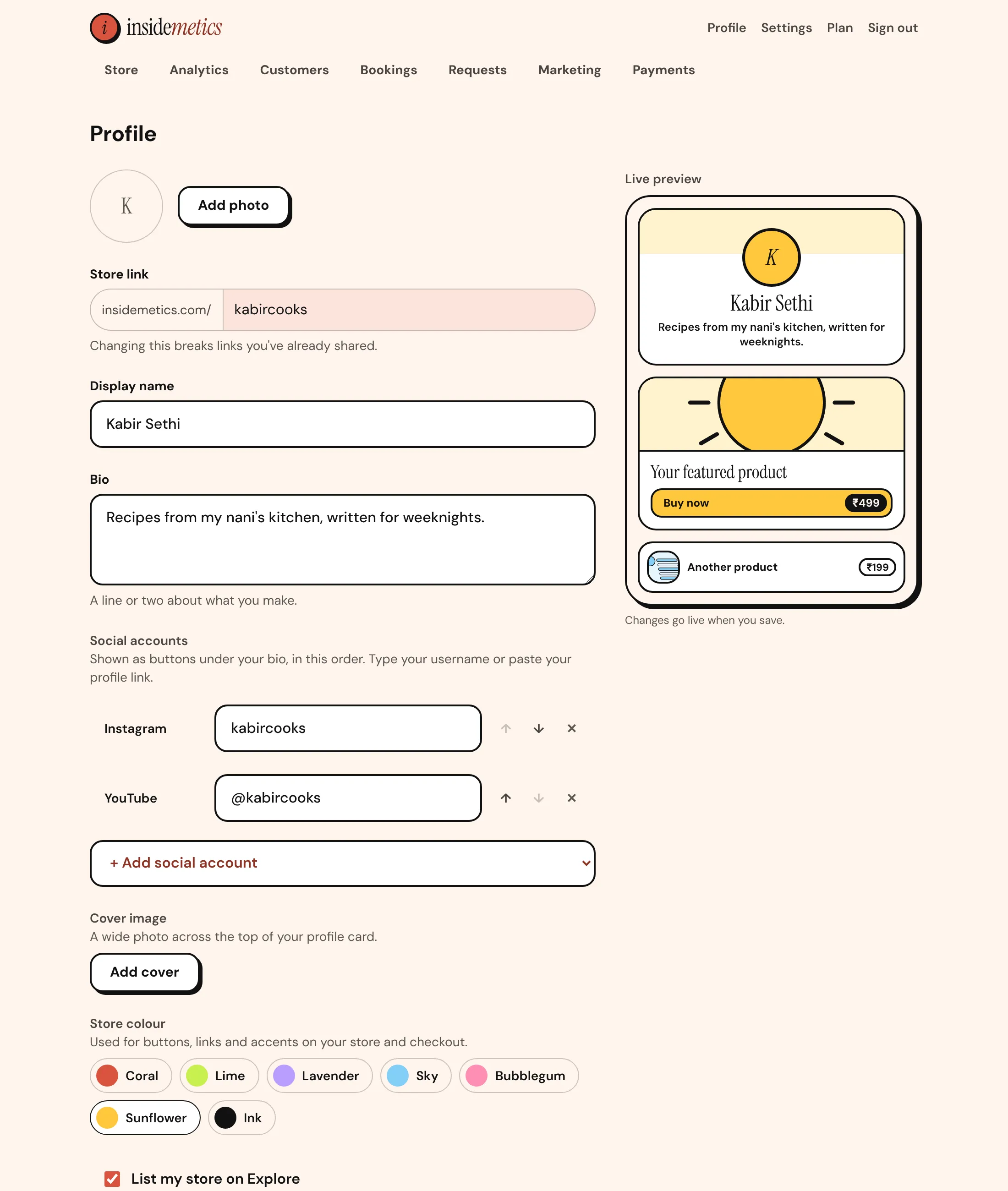
Step 3: Make the store yours
Open Profile. Add a photo, a one-line bio that says who you help and how, and your social accounts in the order you want them shown. Pick a store colour. The live preview on the right updates as you type, so you can see exactly what visitors will see.
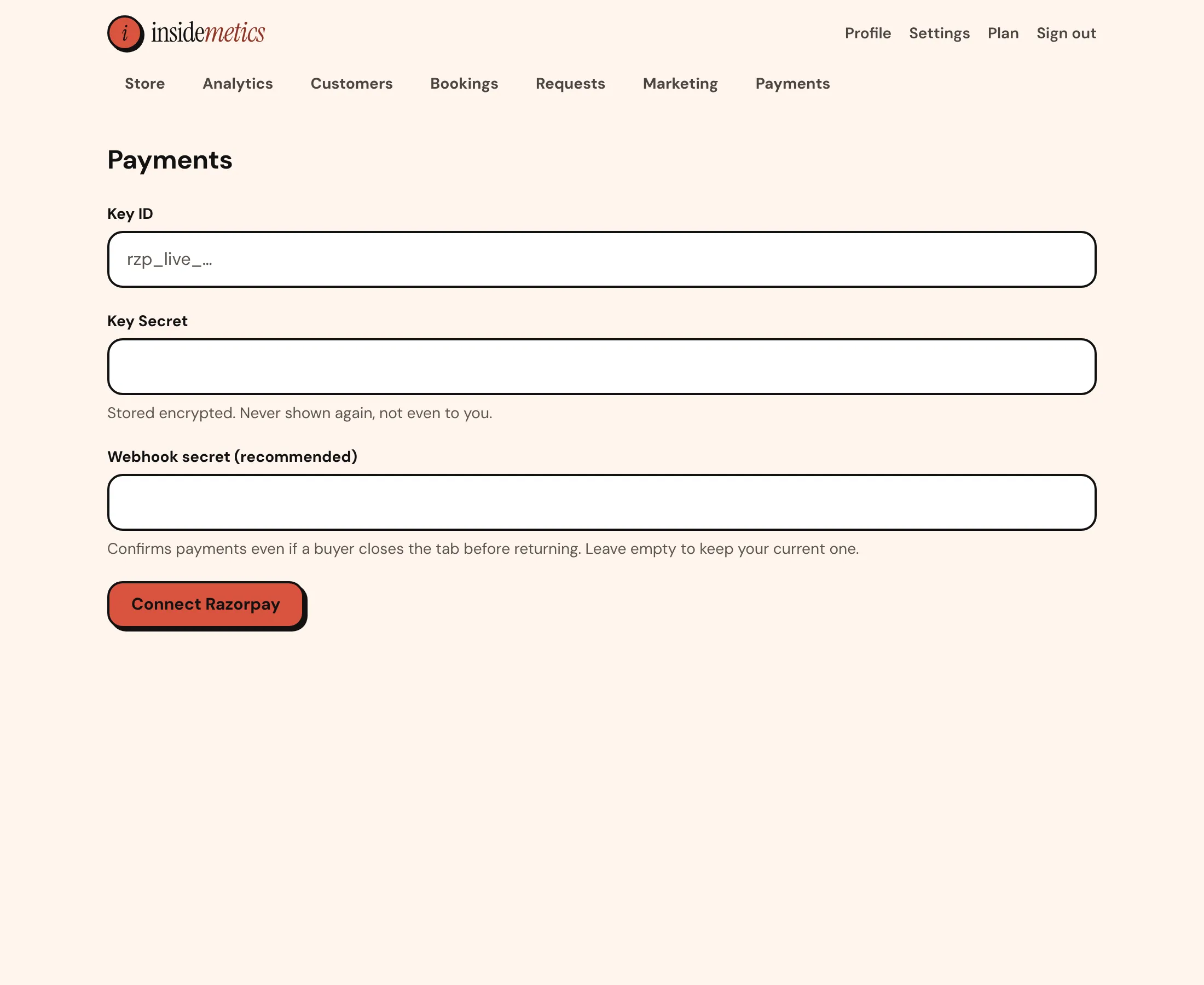
Step 4: Connect Razorpay
In Razorpay, generate API keys (Account & Settings → API Keys). In Insidemetics, open Payments and paste the Key ID and Key Secret. Then add a webhook in Razorpay using the URL shown on the Payments page, with the events payment.captured, order.paid, payment.failed and refund.processed, and paste the same webhook secret here. The webhook lets orders complete even if a buyer closes the tab.
Step 5: Add your first product and share
Click Add product, choose the type (digital download, course, 1:1 call, webinar and more), add a title, price and description, and upload the files buyers get. Then copy your store link into your Instagram, YouTube and WhatsApp bios.
Parth Garg · Founder, Insidemetics
Parth is building Insidemetics, a creator store for India where buyers pay by UPI straight into the creator's own Razorpay account and the platform takes 0% of sales. He writes these guides from what he learns building checkout, delivery and billing for creators.