How to Upload and Sell an Ebook: Step-by-Step Tutorial
Add an ebook to your store, upload the PDF, set a launch price with a strike-through, add an order bump and see exactly what buyers see at checkout.
PParth Garg· Founder, Insidemetics · Updated · 3 min read
In short
- Choose 'Digital product', fill in the title, short line, description and price.
- Use '- ' lines in the description to show a checklist on your store.
- Pick your files on the same form — they upload as soon as you save.
- Buyers pay in one step and get private, expiring download links by email.
This tutorial adds an ebook to a store and walks through what buyers see. It assumes your store is set up and Razorpay is connected — if not, start with the store setup tutorial.
Step 1: Create the product
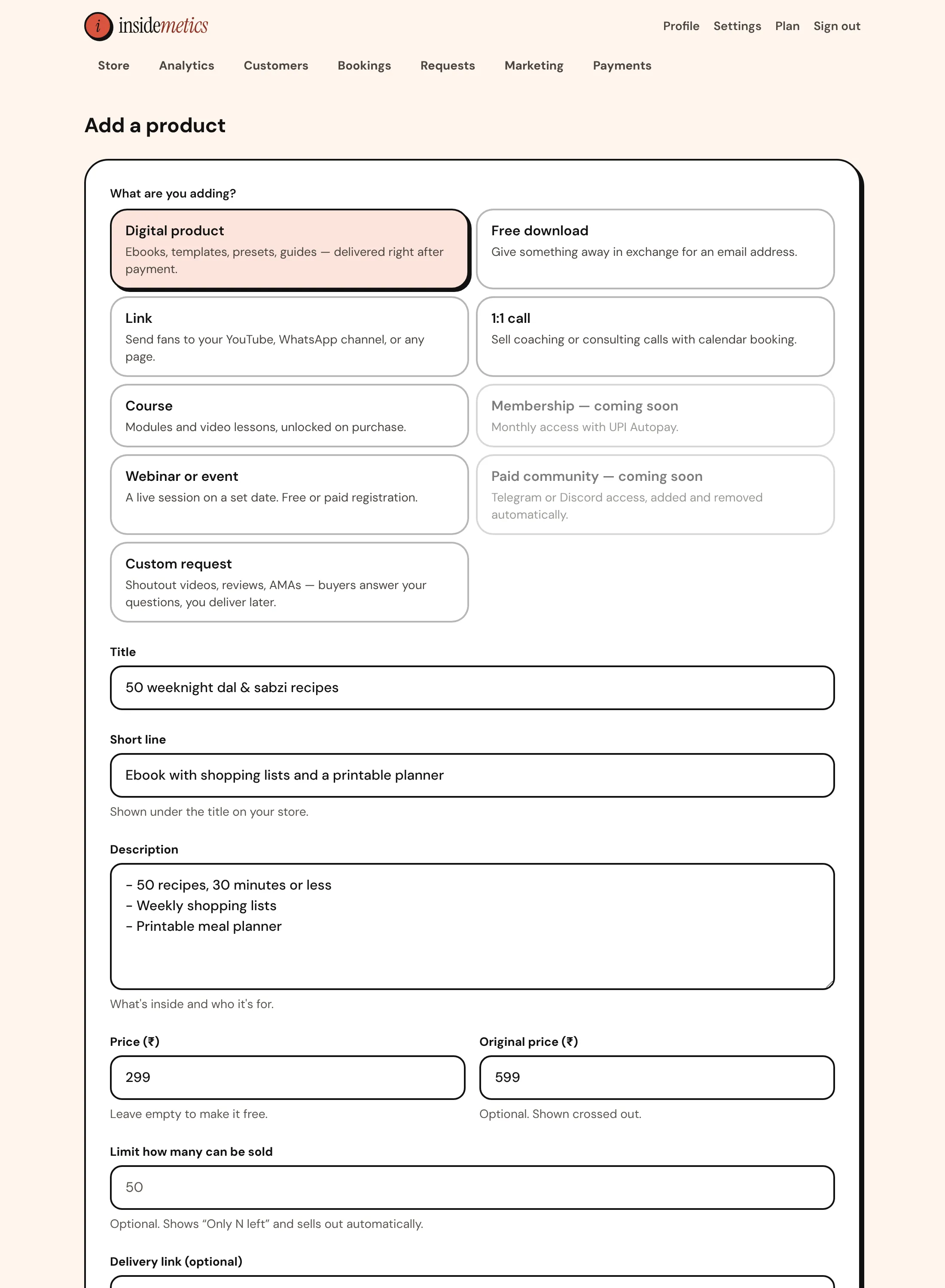
From your dashboard, click Add product and choose Digital product. Fill in:
- Title — what it is, plainly: '50 weeknight dal & sabzi recipes'.
- Short line — the result or what's included: 'Ebook with shopping lists and a printable planner'.
- Description — start lines with '- ' to create a checklist; when the product is featured, the first four appear as ticks on your store.
- Price and Original price — the original price shows struck through during your launch.
Step 2: Add the files
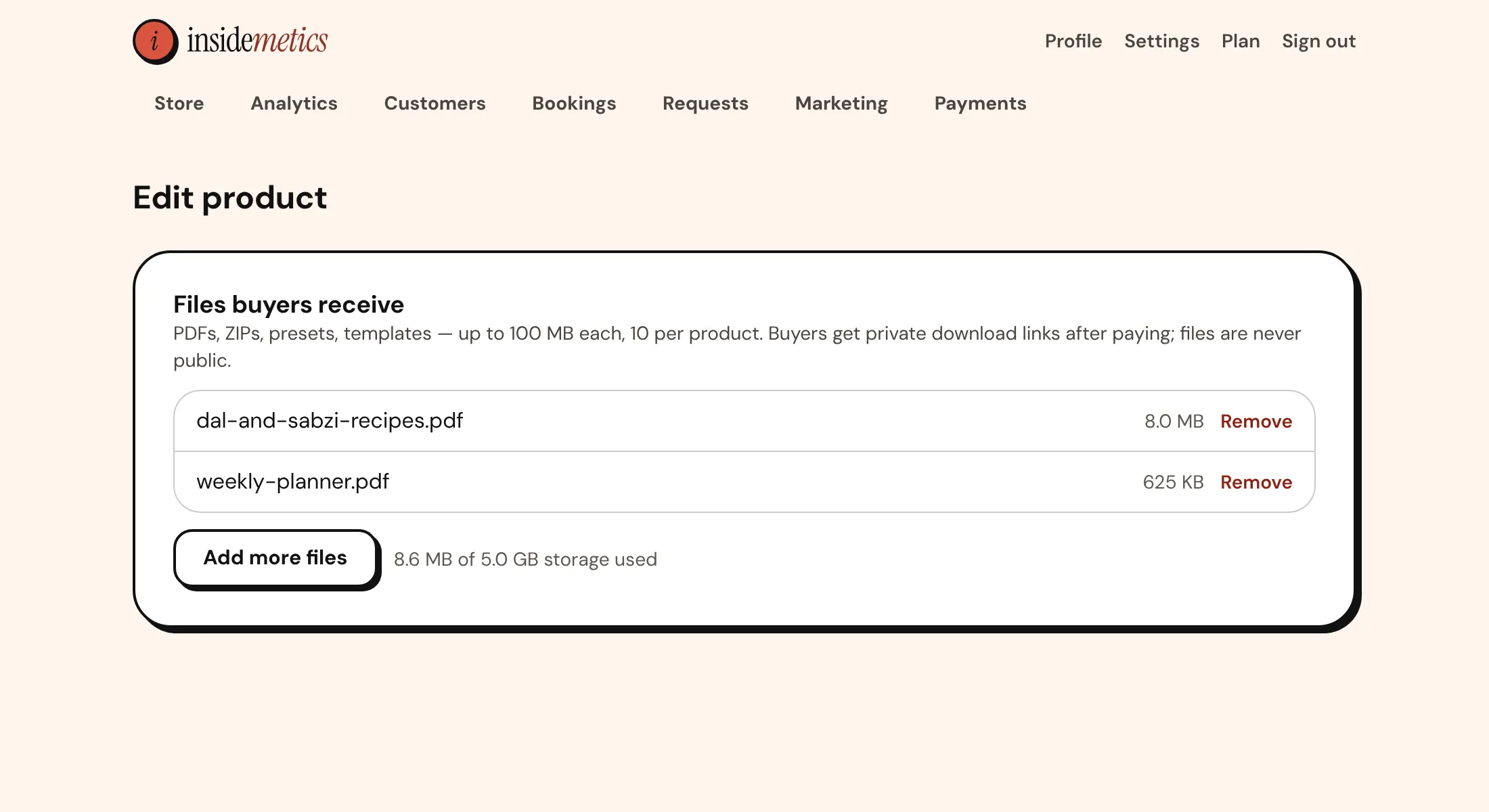
On the same form, click Choose files and pick your PDF (and any bonus files). Each file can be up to 100 MB, with up to 10 files per product. They upload as soon as you click Add product, and the product goes live once they're attached.
Step 3: Add an order bump (optional)
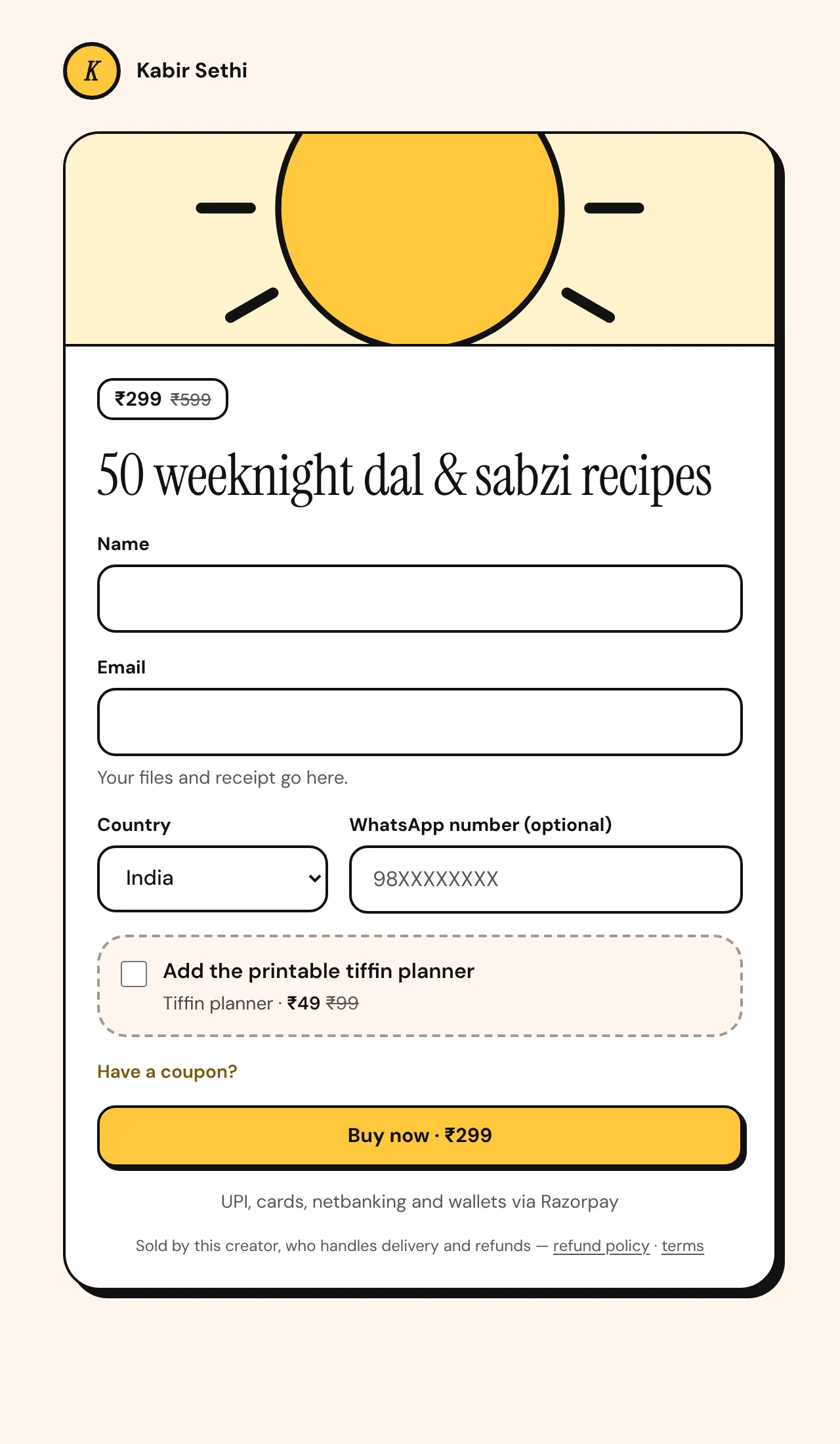
Open the product's Boost sales section to offer a second product at a special price as a checkbox at checkout — for example a ₹49 planner with the ebook. Buyers who already decided to purchase often add it.
Step 4: Check what buyers see
Open your store and click the product. Buyers enter their name and email, choose their country, tick the bump if they want it, and pay by UPI, card or netbanking in Razorpay's checkout. As soon as Razorpay confirms the payment, they get a receipt email with their download links.
Step 5: Launch
- Feature the ebook: the first product in your store order is shown large at the top — use the arrows on your dashboard to move it there.
- Share it in a reel or post with a story link sticker straight to the product page.
- When the launch ends, remove the original price or raise the price.
Parth Garg · Founder, Insidemetics
Parth is building Insidemetics, a creator store for India where buyers pay by UPI straight into the creator's own Razorpay account and the platform takes 0% of sales. He writes these guides from what he learns building checkout, delivery and billing for creators.